
A virtual flyer is the quickest way to put a listing in front of a buyer: one link that opens on any phone, tablet or computer and shows the home, your contact details, your agent partner and mortgage payment information for that property. Starting today the RatePlug member system offers six new Virtual/Digital flyer designs. Each one draws on the same listing data and the same co-branding with your agent. What changes is the look and the way the page is organized, so you can match the flyer to the home and to the people you are sending it to.
Skyline: the photo leads
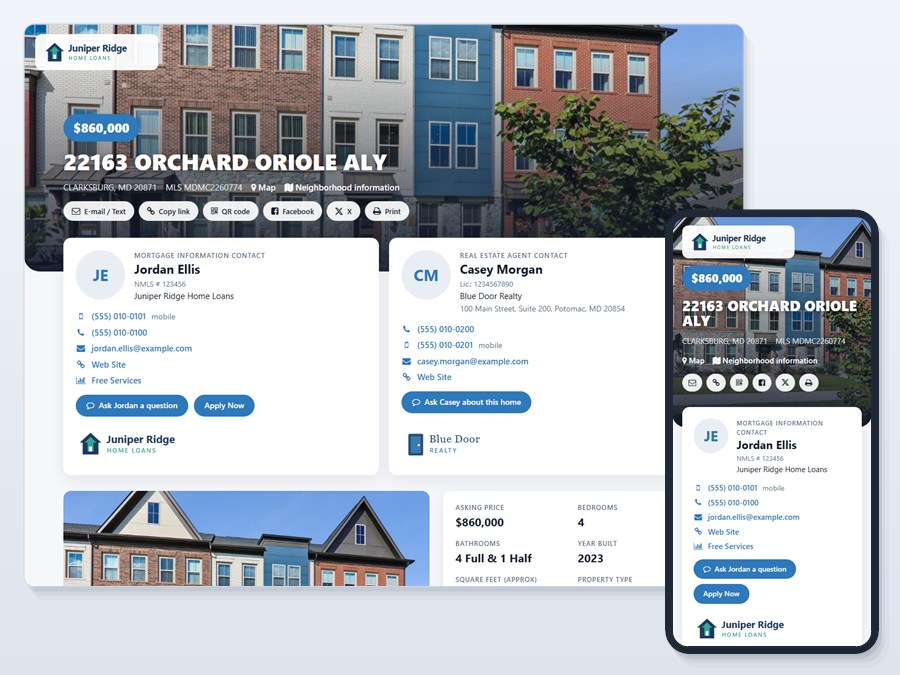
Skyline opens with a large photo of the home, with the price and address set on top of it. Your contact card and the agent’s card come next, ahead of everything else, and the mortgage programs are shown as payment cards that are easy to compare at a glance. It is a strong all-round choice for most listings.
Ledger: contacts always in view
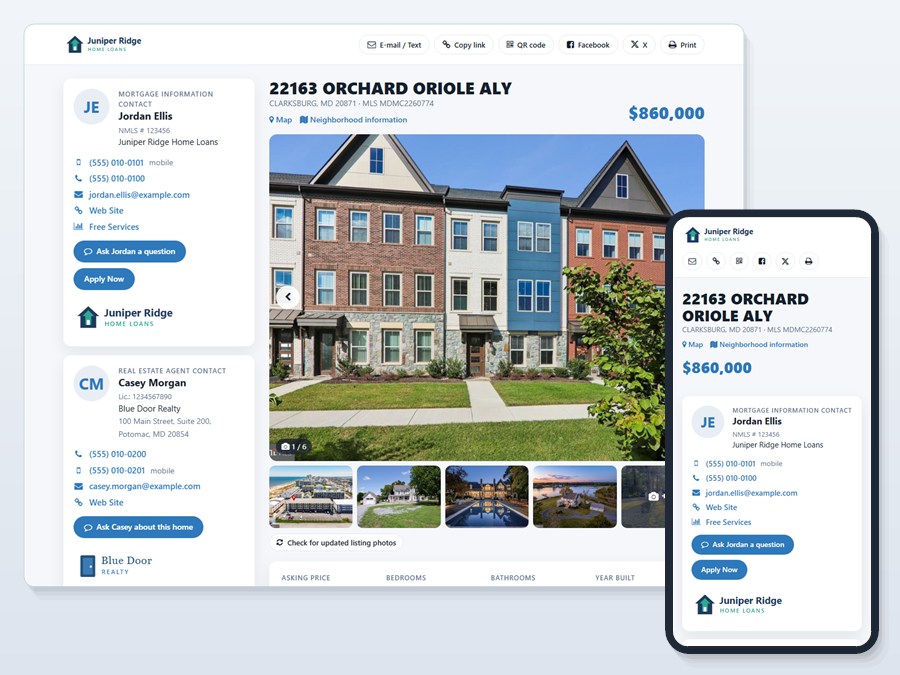
Ledger keeps you and your agent partner in a sidebar that stays on screen while the buyer scrolls. The photo gallery, the property facts and the remarks run down one column beside it, and the mortgage programs are laid out in a table. Choose it when you want the buyer to be one tap away from you at every point on the page.
Editorial: a magazine feel
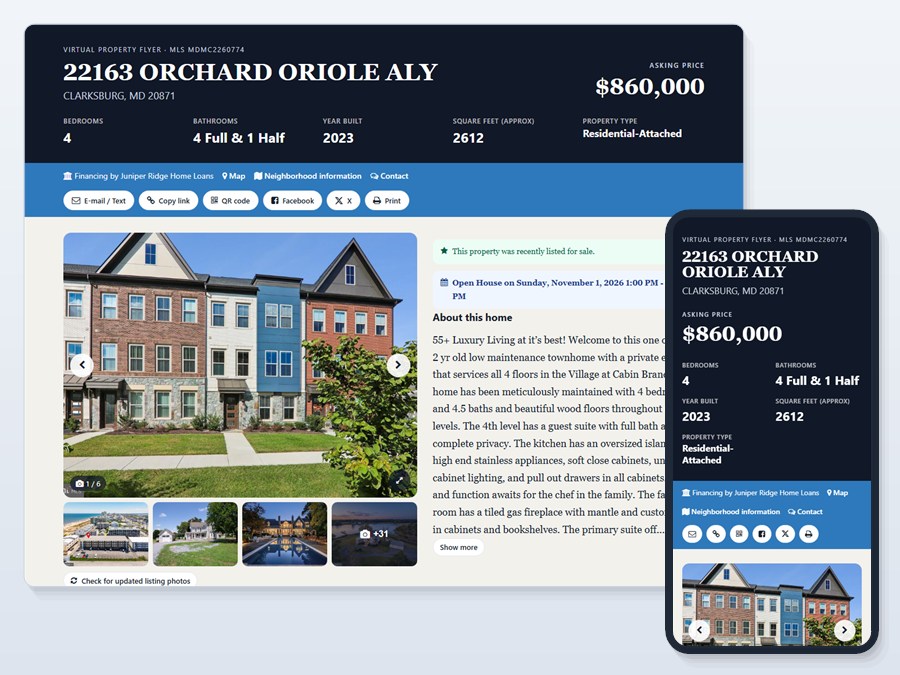
Editorial borrows from magazine layouts. A masthead carries the address and the key figures, the description is set large beside a grid of photos, and you and the agent are introduced together as “Your Team”. The mortgage programs appear in a table. It suits a home with a story to tell.
Vector: clean and tech-forward
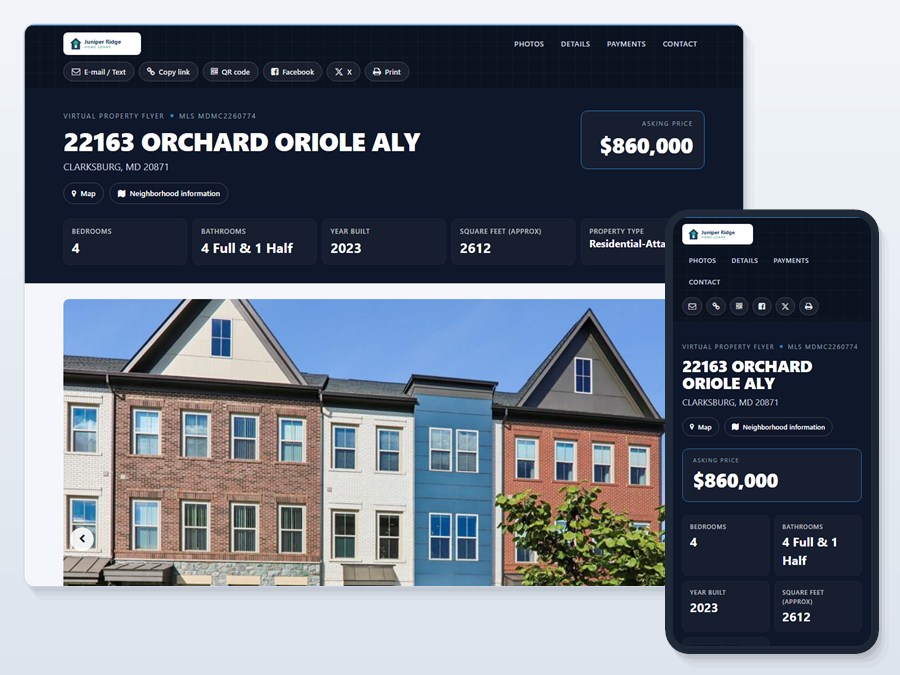
Vector has a dark header that shows the home’s key numbers in tiles, with quick links that jump to Photos, Details, Payments and Contact. The mortgage programs are shown as tiles of their own. It is a good match for modern homes and new construction.
Estate: for high-end homes
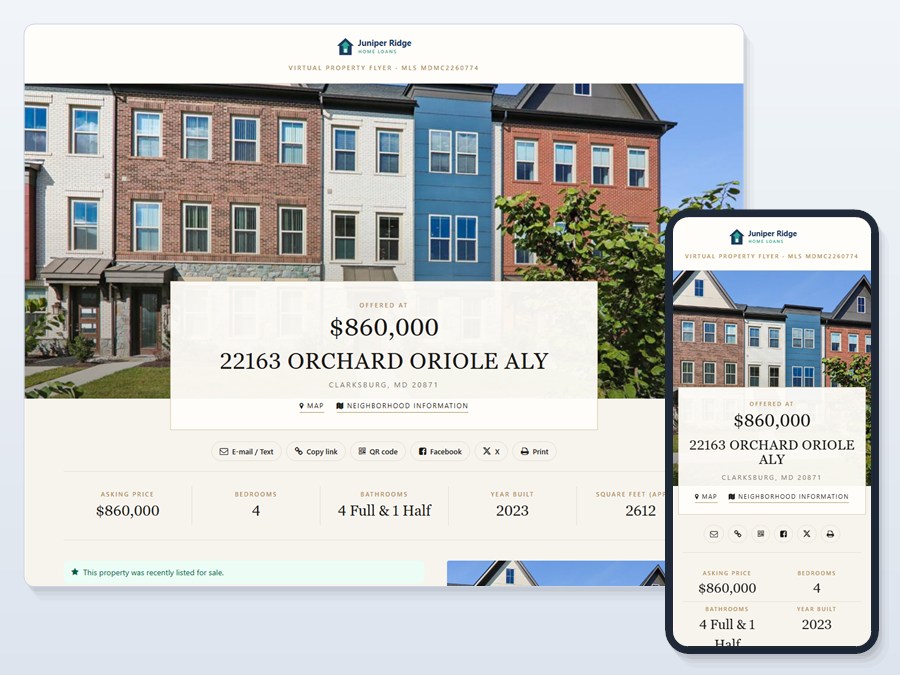
Estate is a quieter, more formal layout built for luxury listings. A full-width photo carries the price and address, the description is set like an essay beside a grid of photos, and you and the agent appear as “Your Advisors”. The mortgage programs are presented in a table.
Open House sign-in: turn visitors into contacts
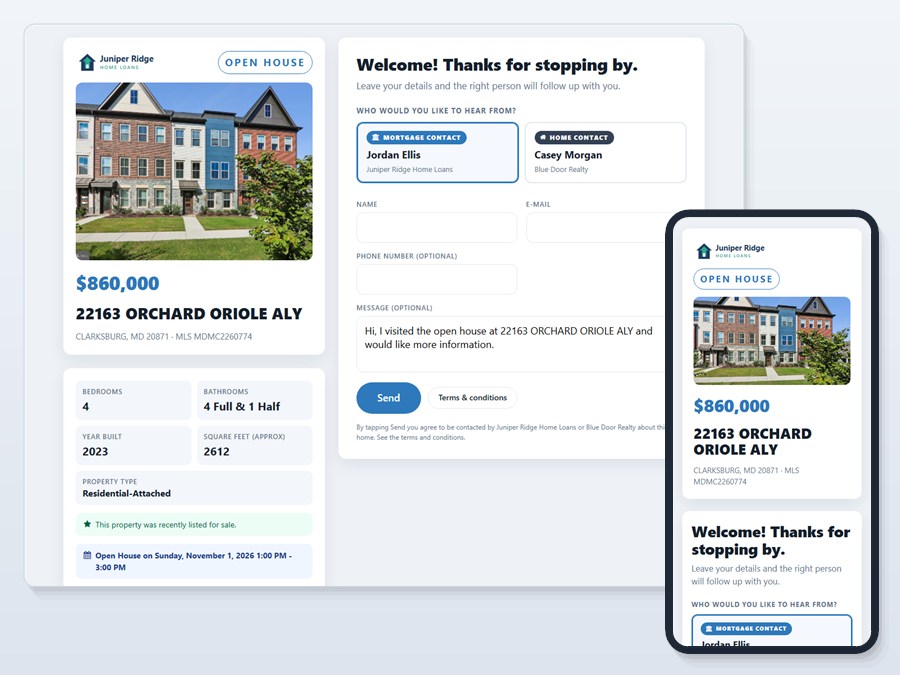
The sixth design has a different job. Set a tablet on the table at an open house and it becomes a sign-in screen. The visitor chooses whether to hear from the loan officer or the agent, enters a name and an e-mail address, and can add a phone number and a message. The details arrive by e-mail, the screen says thank you, and then it resets for the next visitor. It shows a photo, the price and the key facts of the home, and leaves out rates and share buttons so that signing in stays simple.
What the five flyer designs share
- Share buttons for e-mail or text, a link to copy, a QR code, Facebook and X.
- The photo gallery, the property details and the remarks.
- Mortgage payment information for the home, from the programs you offer.
- Co-branding with your agent, each of you with a button the buyer can use to ask a question.
- A print version, and a layout that works on a phone as well as on a desktop.
How to create one
1. Log in to the member system and open Property Flyer.
2. Select the property.
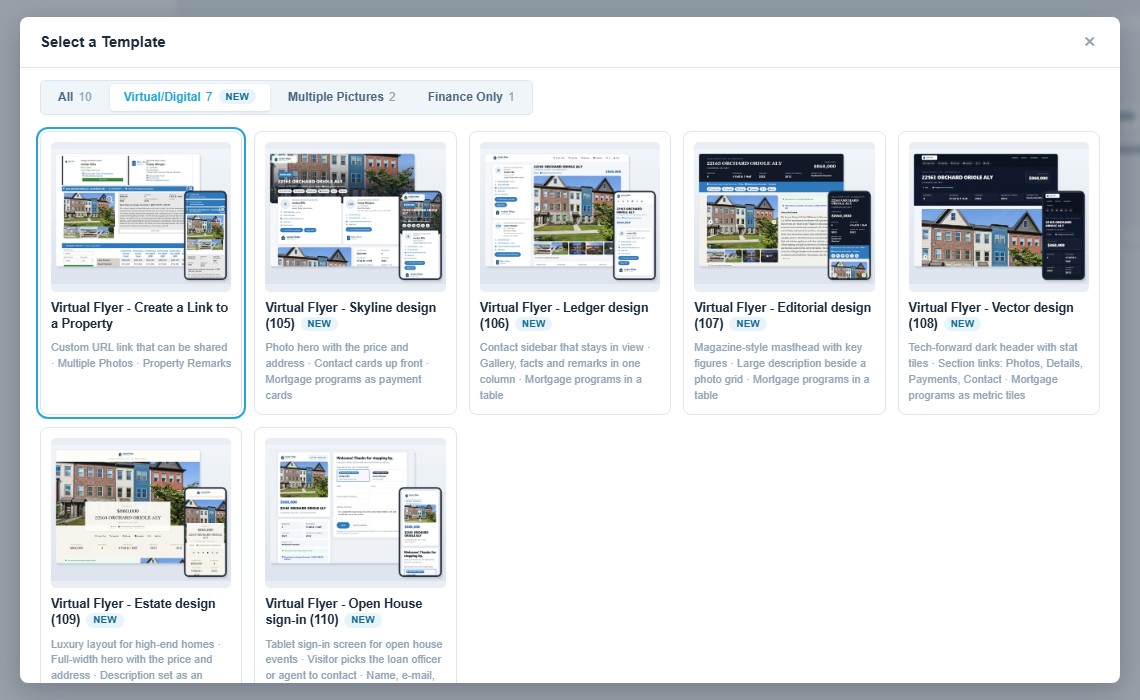
3. Under Select a Template, press Change Template and open the Virtual/Digital category. The six new designs are marked New.
4. Pick a design and generate the flyer. RatePlug creates the flyer’s link, ready to share by e-mail, text or social media, or as a QR code.
See them for yourself
If Virtual/Digital flyers are part of your account, the six designs are in your template list today. Log in to the member system and create one for your next listing. Questions? Reach out to RatePlug and our support team will be happy to help.